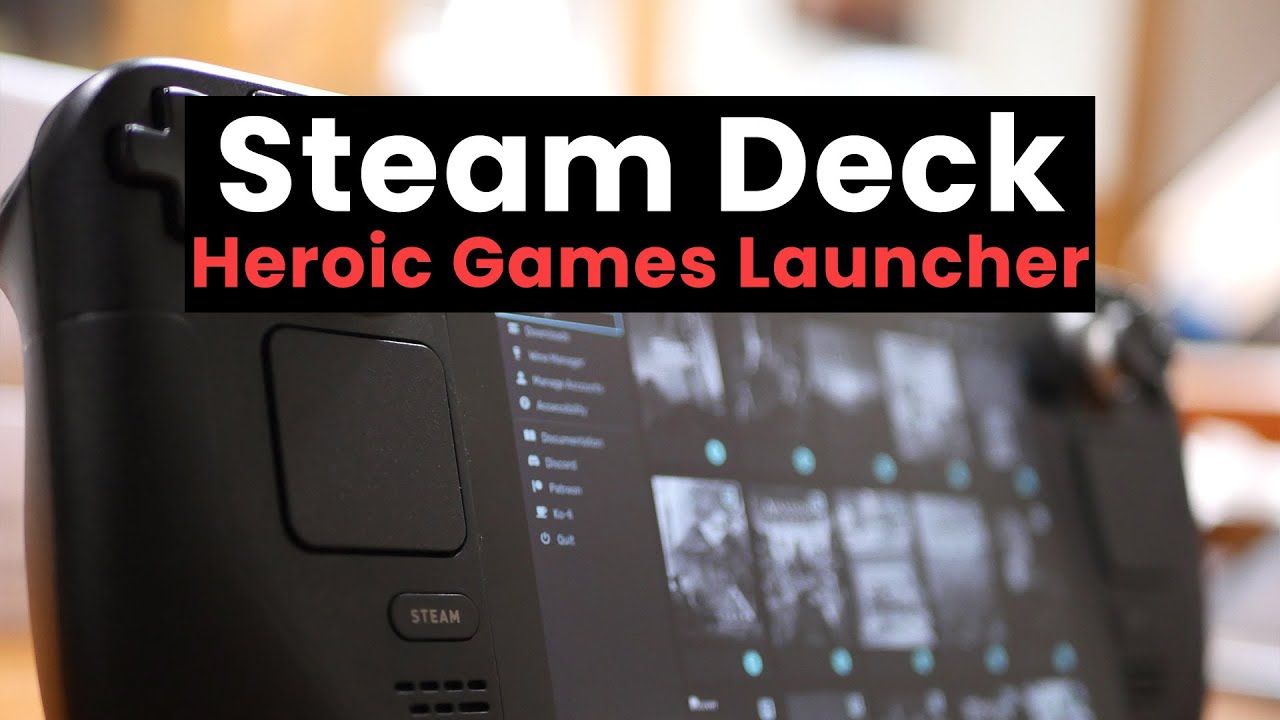
Discover everything about the Heroic Games Launcher on Steam Deck. This comprehensive guide helps you install and optimize your Epic Games and GOG libraries on your portable powerhouse. Learn essential tips for smoother gameplay, better performance, and seamless integration of your favorite titles. Whether you are a casual gamer or a hardcore enthusiast balancing life and gaming, this resource offers practical solutions to common setup and performance issues. We cover installation steps, troubleshooting common errors, maximizing battery life, and finding the best games that run flawlessly. Get ready to transform your Steam Deck into an even more versatile gaming machine, accessing your entire PC game collection on the go. This guide cuts through the clutter, offering clear, actionable advice so you can spend less time tinkering and more time playing. It addresses concerns for gamers juggling work and family who seek efficient ways to enjoy their hobby. Unlock your Steam Deck's full potential today with Heroic Games Launcher.
What is the Heroic Games Launcher for Steam Deck and why should I use it?
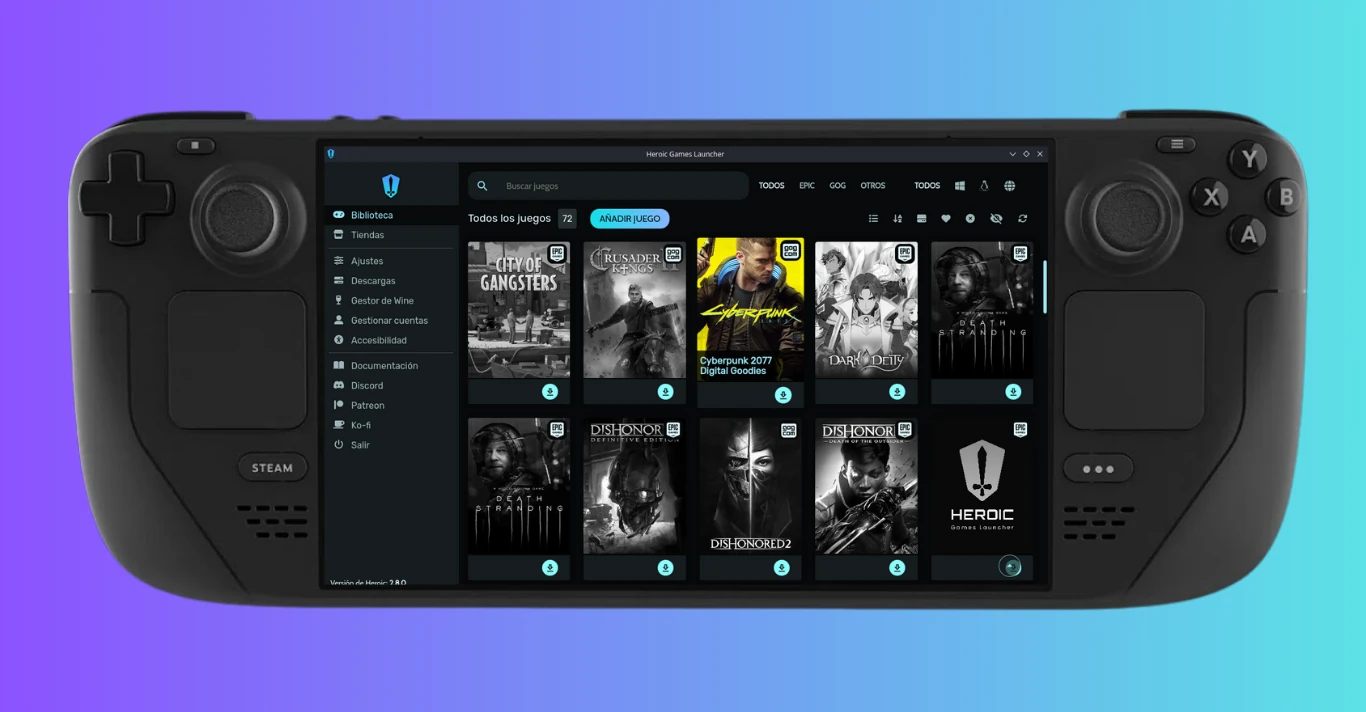
The Heroic Games Launcher is a powerful, open-source alternative client that allows Steam Deck users to access and play games from their Epic Games Store and GOG.com libraries. It's crucial because it bridges the gap, enabling you to enjoy a much wider range of PC titles on your portable device beyond just Steam, without having to dual-boot or resort to complex workarounds. For busy gamers juggling work and family, it consolidates your digital purchases, making it easier to pick up and play your favorite titles whenever you have a moment, transforming your Steam Deck into a truly universal gaming hub.
How can I install Heroic Games Launcher on my Steam Deck without issues?
Installing Heroic Games Launcher on your Steam Deck is straightforward. First, switch to Desktop Mode. Open the Discover Software Center (the blue shopping bag icon). Search for "Heroic Games Launcher" and click "Install". After installation, you might need to launch it once from the Applications menu to complete initial setup, including logging into your Epic Games or GOG accounts. This process is designed to be user-friendly, ensuring even those new to Linux environments can get up and running quickly, saving you valuable time for actual gaming.
What are the best performance settings for Epic and GOG games via Heroic on Steam Deck?
Optimizing performance involves a few key steps within Heroic and on your Steam Deck. Within Heroic, navigate to a game's settings and experiment with different Proton versions. Often, a newer version like Proton GE (GloriousEggroll) downloaded via ProtonUp-Qt yields better results. Enable FSR (FidelityFX Super Resolution) within your Steam Deck's Quick Access Menu while in Game Mode, set the resolution lower, and scale it up. Adjust in-game settings to a mix of medium-low for demanding titles. These tweaks ensure smoother frame rates and a more enjoyable experience, allowing you to maximize your limited gaming sessions.
How do I seamlessly add my Heroic Games Launcher titles to my Steam Library for Game Mode?
Integrating your Heroic games into your Steam Library makes them easily accessible from Game Mode, just like native Steam titles. After installing a game via Heroic, open Heroic and select the game. Go to the game's settings and look for the "Add to Steam" option. This typically creates a shortcut that launches the game through Heroic within Game Mode. For more advanced control, you can manually add non-Steam games via the Steam client in Desktop Mode, pointing to Heroic's executable and then customizing the launch options for the specific game. This integration provides a unified library, perfect for gamers who value convenience and a cohesive user experience.
What should I do if a game isn't launching or crashing frequently through Heroic on Steam Deck?
If you encounter issues, start by checking the game's specific Wine/Proton compatibility reports on ProtonDB. Within Heroic, try switching the Proton/Wine version for the problematic game. Often, different versions resolve specific bugs. Ensure Heroic itself is up to date, and consider reinstalling the game if other solutions fail. For persistent issues, clearing the game's shader cache (an option within Heroic) can sometimes help. The Steam Deck community and Heroic's Discord are also excellent resources for specific game troubleshooting, offering collective wisdom to get you back into the action quickly.
Can I manage game updates and DLC effectively using Heroic Games Launcher on my Steam Deck?
Yes, Heroic Games Launcher effectively handles game updates and DLC management for both Epic Games Store and GOG.com titles. When you launch Heroic, it will automatically check for available updates for your installed games, notifying you if new versions are ready to download. For DLC, once purchased through the respective storefront, it typically appears as an installable option within the game's page in Heroic. You can enable or disable DLC packs from there. This streamlined approach ensures your game library remains current and complete, allowing you to focus on playing without constant manual checks, which is ideal for busy gamers.
Is it possible to play online multiplayer games from Epic Games Store through Heroic on Steam Deck?
Yes, playing online multiplayer games from the Epic Games Store through Heroic on Steam Deck is generally possible, though it can sometimes require specific compatibility layers or community workarounds for anti-cheat software. Many popular titles with Epic's own anti-cheat or Easy Anti-Cheat (EAC) that have Linux support will often work out of the box with the right Proton version. However, games utilizing certain third-party or Windows-exclusive anti-cheat solutions might still pose challenges. Always check game-specific compatibility reports on sites like ProtonDB or community forums to ensure a smooth online experience before diving into competitive play.
Balancing a demanding job, family responsibilities, and a passion for gaming can feel like a boss battle in itself. Many of us, part of the 87% of US adults who regularly game, find solace and fun in our digital worlds, often squeezing in 10 or more hours a week. But what happens when your favorite titles are scattered across different PC launchers, and you just want to relax with them on your portable Steam Deck? The frustration of navigating multiple storefronts—Epic Games, GOG, and more—can quickly turn fun into a chore, especially when you have limited time. You’ve invested in your Steam Deck for that seamless pick-up-and-play experience, only to find yourself wrestling with compatibility and setup complexities. You want to unwind, build some skills, or connect with friends in your favorite social games, not spend precious moments troubleshooting.
That’s where the Heroic Games Launcher Steam Deck integration comes in. Imagine unlocking your entire Epic Games and GOG library directly on your Steam Deck, transforming it into the ultimate portable powerhouse for all your PC games. No more dual-booting or complicated workarounds. This comprehensive guide is designed for gamers like you—those who value relaxation, performance optimization, and getting the most value for their money without the hype. We’ll walk you through everything, from initial setup to advanced performance tweaks and troubleshooting common issues. By the end, you’ll have the knowledge to seamlessly play your non-Steam titles, reclaim your gaming time, and make your Steam Deck truly limitless. Let’s dive in and elevate your gaming experience.
What is Heroic Games Launcher and why do I need it on my Steam Deck?
The Heroic Games Launcher is a powerful, open-source alternative client that allows Steam Deck users to access and play games from their Epic Games Store and GOG.com libraries. It’s essentially a bridge that connects your Steam Deck to these other PC game ecosystems. For many gamers, particularly the Gen Z and Millennial demographic, digital libraries are spread across various platforms due to sales, free game giveaways, or exclusive titles. The Heroic Games Launcher Steam Deck integration solves the headache of managing these disparate collections, consolidating them into a more unified experience on your portable device. It’s crucial because it enables you to enjoy a much wider range of PC titles on the go, without resorting to complex workarounds or dual-booting Windows, ensuring you get the most out of your Steam Deck investment.
How do I install Heroic Games Launcher on my Steam Deck?
Installing Heroic Games Launcher is a straightforward process, even if you’re new to the Steam Deck’s Desktop Mode. Here’s a simple step-by-step guide:
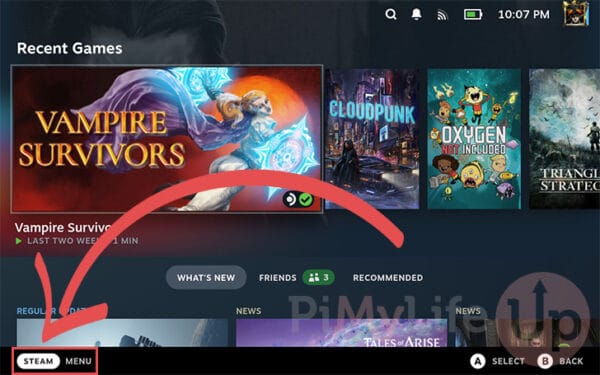
- Switch to Desktop Mode: Press the Steam button, navigate to Power, and select “Switch to Desktop.”
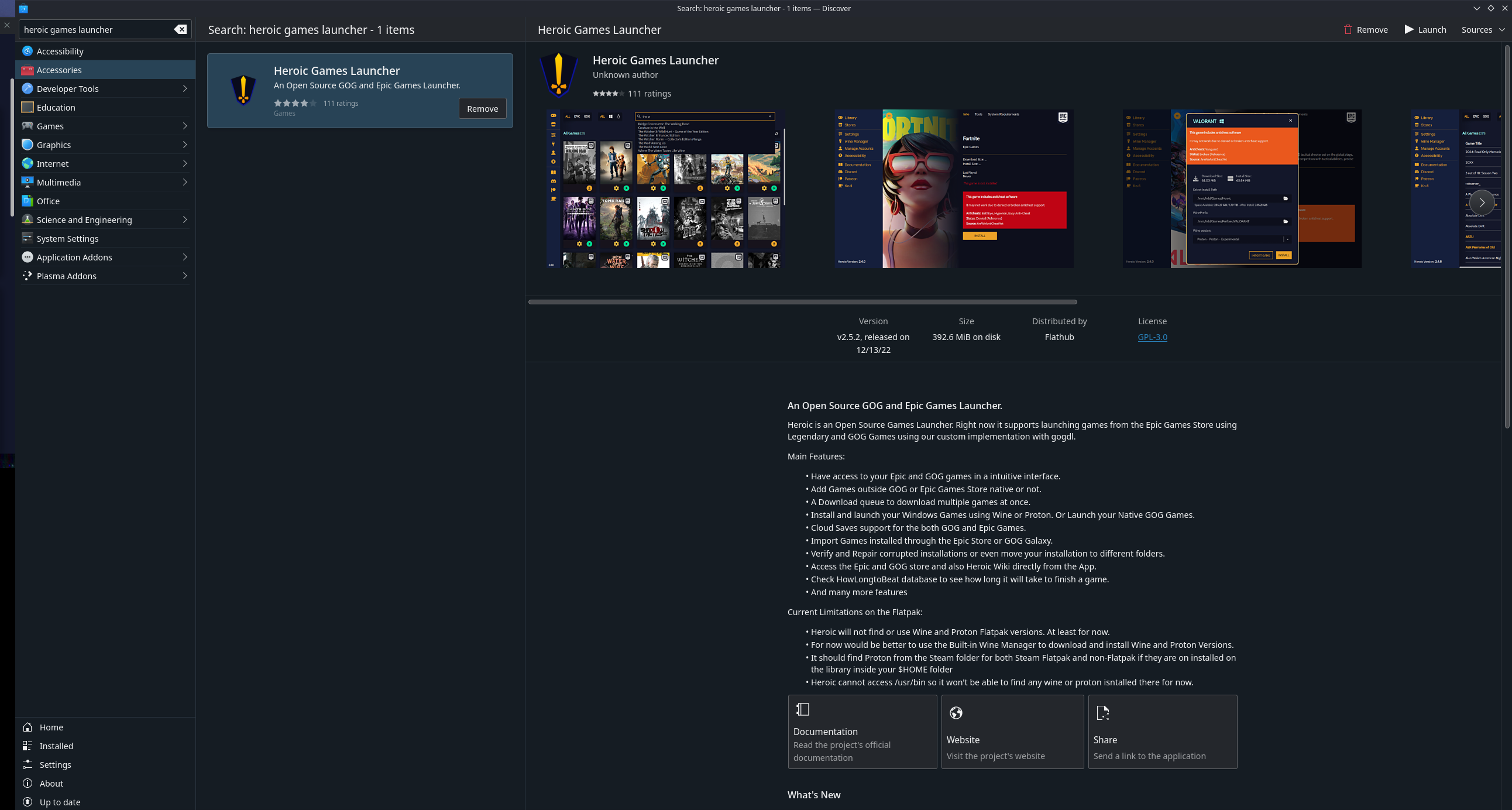
- Open Discover Software Center: Once in Desktop Mode, click on the blue shopping bag icon in your taskbar. This is the Discover Software Center.
- Search for Heroic: In the search bar, type “Heroic Games Launcher.”
- Install Heroic: Click on “Heroic Games Launcher” in the search results, then select the “Install” button.
- Launch and Log In: After installation, you can find Heroic in your Applications menu. Launch it, and you'll be prompted to log in with your Epic Games and/or GOG.com credentials. This securely connects your game libraries to Heroic.
This process is designed to be user-friendly, ensuring that even busy adults can quickly get their launcher set up and minimize setup issues. It saves you valuable time, getting you into your games faster.
Can I add my Epic Games and GOG libraries to Heroic? How?
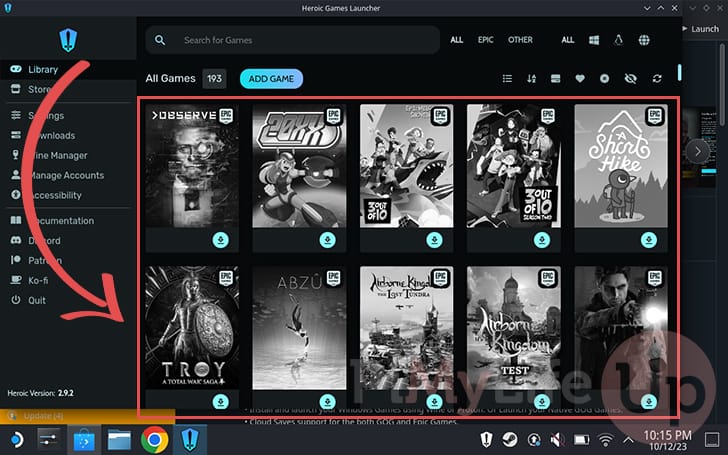
Absolutely, that’s the primary purpose of Heroic Games Launcher! Once Heroic is installed and you’ve launched it for the first time, you’ll see options to log in to your Epic Games Store and GOG.com accounts. Simply click the respective buttons, enter your credentials, and Heroic will securely fetch your game libraries. Your purchased and free games will then populate within the Heroic interface, ready for download and play. This seamless integration means you no longer need to rely solely on the Steam client for your Steam Deck gaming, opening up a world of possibilities from games you already own. For gamers keen on value for money, this is a fantastic way to maximize your existing digital purchases across different storefronts.
How can I optimize game performance using Heroic on Steam Deck?
Optimizing performance with Heroic Games Launcher Steam Deck can significantly enhance your gaming experience. Here’s how:
- Proton Versions: Heroic uses Wine/Proton to run Windows games. Experiment with different Proton versions for each game. Often, a newer version like Proton GE (GloriousEggroll), which you can download easily via the separate ProtonUp-Qt tool (also in the Discover Store), yields better results for specific titles. Access game settings within Heroic to change the Proton version.
- In-Game Settings: Just like on a PC, reducing demanding graphics settings (like shadows, anti-aliasing, and texture quality) to medium or low can drastically improve frame rates.
- Steam Deck FSR: While in Game Mode, access the Quick Access Menu (the three dots button), navigate to the Performance tab, and enable FSR (FidelityFX Super Resolution). Set an in-game resolution lower than the Steam Deck’s native 1280x800 (e.g., 960x600), and FSR will upscale it, often providing a sharper image with better performance.
- TDP Limits & Clock Speeds: Also in the Performance tab, consider setting a Thermal Design Power (TDP) limit or adjusting GPU/CPU clock speeds for specific games. Lowering the TDP can save battery life and reduce heat, while fine-tuning clock speeds can sometimes stabilize frame rates.
These optimization tips are essential for gamers who want to squeeze the most out of their hardware without breaking the bank on upgrades, allowing for smooth gameplay during those precious gaming moments.
What are common troubleshooting tips for Heroic Games Launcher on Steam Deck?
Even with great software, you might hit a snag. Here are common troubleshooting tips for Heroic Games Launcher Steam Deck users:
- Game Not Launching or Crashing:
- Change Proton Version: As mentioned, this is often the fix. Try different Proton GE versions.
- Clear Shader Cache: Within Heroic, for each game, there’s usually an option to clear the shader cache. Corrupt caches can cause issues.
- Verify Game Files: Just like Steam, Heroic allows you to verify the integrity of game files, which can fix corrupted installations.
- Reinstall Game: As a last resort, a fresh installation can often resolve deep-seated issues.
- Login Issues: Ensure your internet connection is stable. If you’re using 2FA, double-check that you’re entering the correct code promptly. Sometimes, temporary server issues from Epic or GOG can affect login; try again later.
- Heroic Itself Not Launching: Ensure Heroic is up to date via the Discover Software Center. If persistent, try reinstalling Heroic.
- Check Community Resources: Sites like ProtonDB and the Heroic Games Launcher Discord server are invaluable. Gamers often share specific fixes for particular games or common issues. This collective knowledge is perfect for those seeking quick solutions to get back to their stress-relief gaming.
How do I add Heroic games to my Steam Library for Game Mode?
Integrating your Heroic games into your Steam Library means you can launch them directly from the familiar Steam Game Mode interface, just like native Steam titles. This enhances the seamless, console-like experience of the Steam Deck, perfect for quick access.
- Install and Launch Game in Heroic: First, make sure the game is installed and has been launched at least once through Heroic in Desktop Mode.
- Use Heroic’s “Add to Steam” Feature: Open Heroic, select the game you want to add. Look for a gear icon or settings menu for that specific game. There’s usually an option like “Add to Steam” or “Create Desktop Shortcut.” If it creates a desktop shortcut, proceed to the next step.
- Manually Add to Steam (if needed):
- In Desktop Mode, open the Steam client.
- Go to “Games” in the top menu bar and select “Add a Non-Steam Game to My Library.”
- Click “Browse…” and navigate to the Heroic Games Launcher executable. This is often located at
/usr/bin/heroic. Select it. - Add this as a non-Steam game.
- Now, right-click on this new entry in your Steam Library and go to “Properties.”
- Change the name to your specific game (e.g., “Cyberpunk 2077 (Epic)”).
- In the “Launch Options” field, you’ll need to add a command to tell Heroic which game to launch. The exact command varies slightly but often looks like:
heroic launch "Game Name"orheroic launch --game-name "Game Name". Consult Heroic’s documentation or community for the precise syntax for your game. - You can also customize the artwork and icons for a polished look.
This integration simplifies your gaming routine, making it easier to jump into any game, whether it's from Steam, Epic, or GOG, a huge plus for those who appreciate efficient, streamlined entertainment.
Does Heroic Games Launcher impact Steam Deck battery life? How can I manage it?
Running non-native Windows games through compatibility layers like Proton via Heroic can sometimes be more resource-intensive than native Linux games or highly optimized Steam titles, potentially impacting battery life. However, the impact is often similar to running a demanding Steam game.
To manage battery life:
- Performance Profiles: Utilize the Steam Deck’s built-in performance profiles in the Quick Access Menu. Setting a lower refresh rate (e.g., 40Hz) and frame rate limit (e.g., 40fps) can significantly extend playtime without severely impacting the experience, especially for less demanding titles.
- TDP Limits: Experiment with lowering the TDP (Thermal Design Power) for less demanding games. Reducing the power draw can noticeably improve battery life.
- Brightness: Lowering screen brightness is a simple yet effective way to conserve power.
- Game Settings: As always, lowering in-game graphics settings reduces the workload on the GPU, leading to less power consumption.
For gamers balancing work and life, efficient power management means more uninterrupted playtime, whether on a commute or during a short break.
What are some popular games that run well on Heroic Games Launcher via Steam Deck?
The compatibility list for Heroic Games Launcher Steam Deck is constantly growing, thanks to Proton’s development and community efforts. Many popular Epic and GOG titles run exceptionally well. As of this month’s trends, gamers are enjoying a wide variety:
- Action-Adventure: Titles like Cyberpunk 2077 (with tweaks), God of War, and Red Dead Redemption 2 often perform surprisingly well, especially with Proton GE and FSR.
- Indie & Cozy Games: Many indie darlings from Epic and GOG, which are perfect for relaxation and social play, run flawlessly. Think Hades, Disco Elysium, Stardew Valley (if you have it on GOG), and various simulation games.
- Free-to-Play: Popular free-to-play titles from Epic, like Fortnite (though anti-cheat can be a hurdle for online play), Fall Guys, or Rocket League, can often be played, offering budget-friendly entertainment.
- Older Titles: Many classic PC games from GOG, known for their DRM-free nature, are perfect for the Steam Deck and run without a hitch through Heroic.
The key is to check community reports on sites like ProtonDB for specific games and their optimal Proton versions. This allows you to select games known for their performance, ensuring a fun experience even with limited time.
How does Heroic compare to other non-Steam launchers on the Steam Deck?
The Steam Deck, being a versatile Linux-based PC, supports several non-Steam launchers. Heroic Games Launcher specifically focuses on Epic Games Store and GOG.com, providing a polished, integrated experience for these platforms. Other options include:
- Lutris: A more general-purpose game manager that can install and launch games from various sources, including Battle.net, Origin, and more, using a wide range of Wine versions. It's powerful but can be more complex to set up.
- Bottles: Focuses on creating isolated
Play Epic and GOG games on Steam Deck. Easy installation and setup guide. Performance optimization tips for smooth gameplay. Access PC game libraries portably. Troubleshooting common issues. Enhance Steam Deck versatility.
35#1 Gallery heroic games launcher steam deck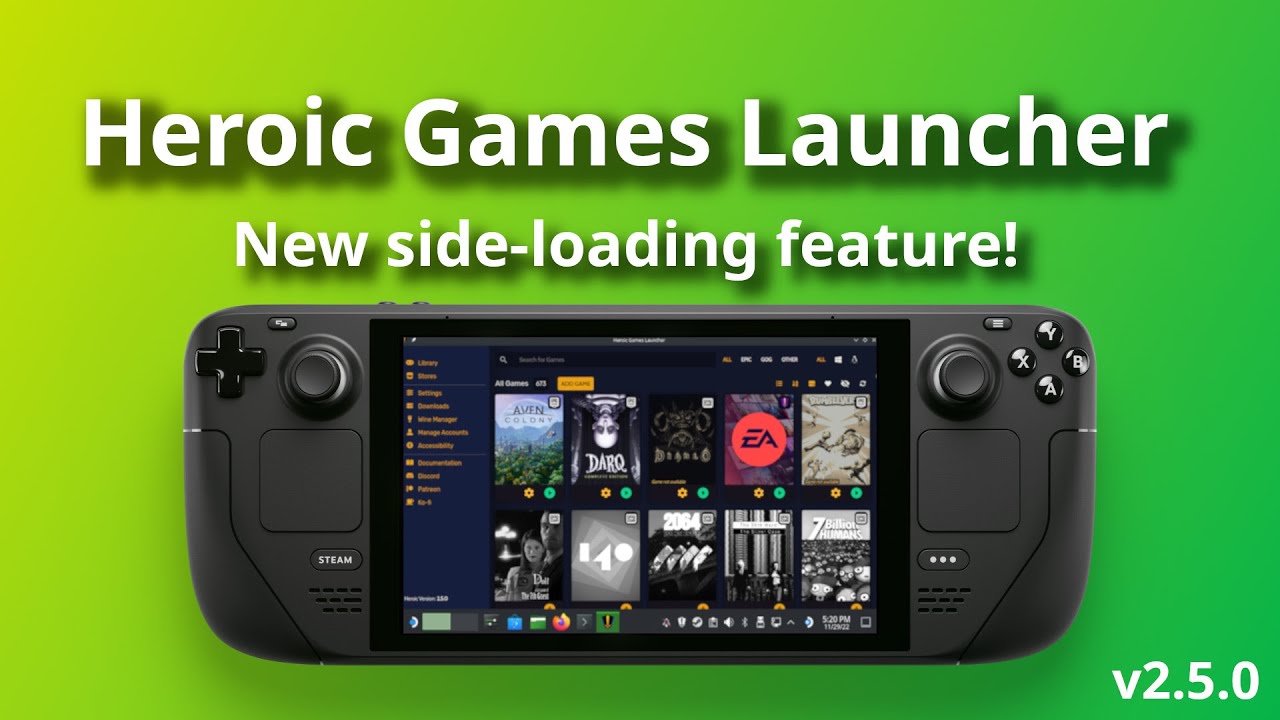
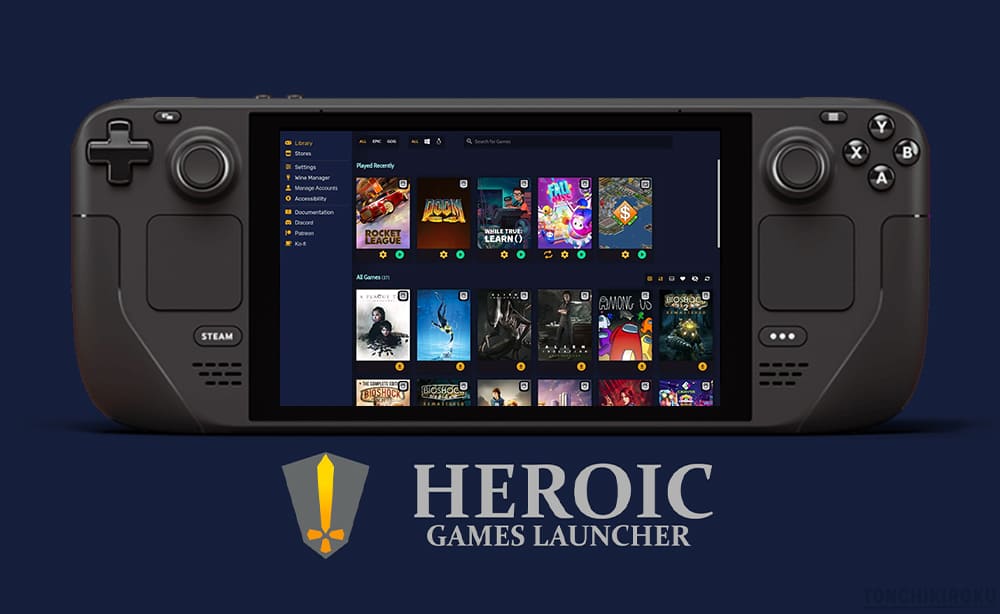


Heroic Games Launcher Steam Deck GOG Epic Games New Update . Steam Deck Heroic Games Launcher Epic Games GOG Steamdeck Heroic Game Lancher How To 00 . Steam Deck Heroic Games Launcher YouTube . Heroic Game Launcher On Steam Deck Your Ultimate Gaming Hub Heroic Games Launcher 1 . Setting Up Heroic Games Launcher On Steam Deck Steam Deck Tutorial
#2 Gallery heroic games launcher steam deck



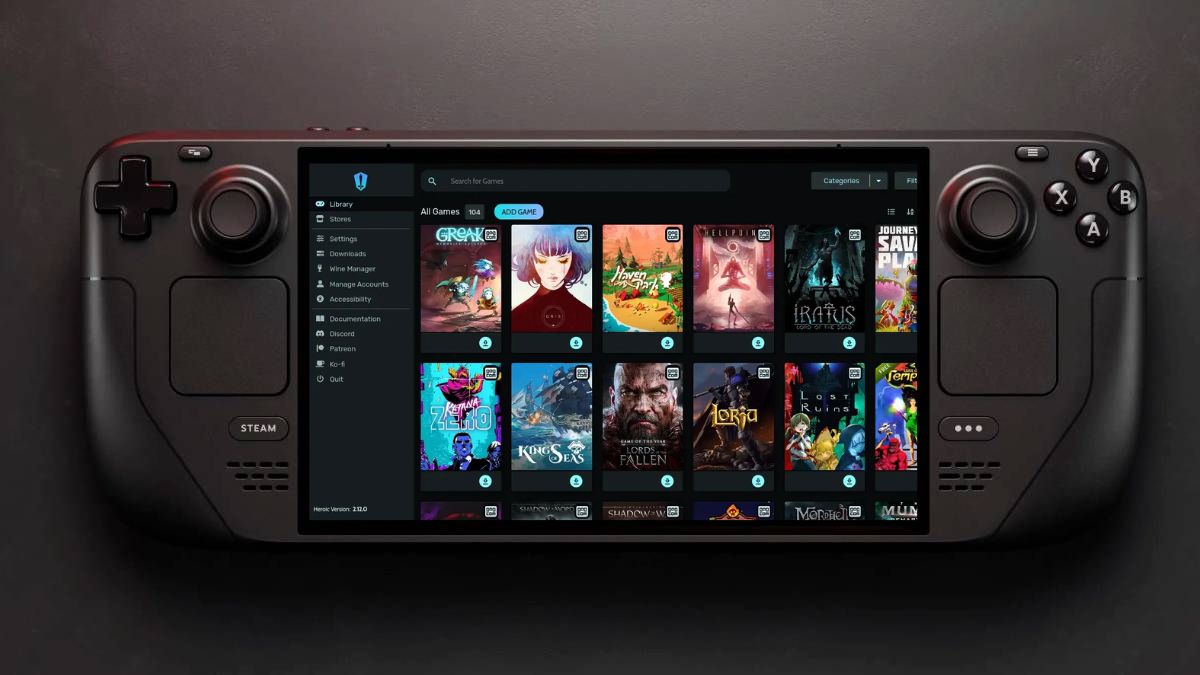
Heroic Games Launcher On Steam Deck Just Got A GREAT Update YouTube . Steam Deck How To Install Heroic Games Launcher Best Way To Play . Steam Deck Epic And GOG Store Games With Heroic Launcher Short . Steam Deck Heroic Games Launcher A Quick And Dirty Guide YouTube . Steam Deck Gets A Boost With Heroic Launcher 2 16 0 Update Adds Heroic Launcher New Update
#3 Gallery heroic games launcher steam deck
Heroic Game Launcher On Steam Deck Your Ultimate Gaming Hub Heroic Games Launcher . Use Epic Games On Steam Deck With Heroic Launcher YouTube . Heroic Games Launcher On Steam Deck Not Working Launching Games How Sd3 . Instalar Heroic Games Launcher En Steam Deck Heroic Games Launcher En Steam Deck.webp. COMO INSTALAR HEROIC GAMES LAUNCHER EN STEAM DECK EN 5 MINUTOS YouTube
#4 Gallery heroic games launcher steam deck

Steam Deck Heroic Launcher Epic Games Launcher Steam Deck HHCT Steam Deck Mods . Steam Deck Heroic Games Launcher Epic Games GOG Steamdeck Epic Games Launcher How To 00 375x230 . How To Install The Heroic Games Launcher On The Steam Deck Pi My Life Up Steam Deck Heroic Games Launcher Thumbnail . Steam Deck Heroic Games Launcher Wiki GitHub. How To Play Your Epic Games On The Steam Deck Using Heroic Games Heroic Game Launcher Steam Os
#5 Gallery heroic games launcher steam deck
Heroic Launcher Is FINALLY The Way To Play EPIC Games On STEAM DECK . Heroic Games Launcher Qu Es C Mo Funciona Y Ventajas Heroic Games Launcher . Heroic Launcher Adds Fullscreen Console Mode With Latest Update 2.webp. How To Install The Heroic Launcher To Play Epic And GOG Titles On Your . Heroic Games Launcher Heroic Stores
#6 Gallery heroic games launcher steam deck

Heroic Games Launcher Steam Deck Guide Heroic Games Launcher Steam Deck Library 2 . How To Install The Heroic Games Launcher On The Steam Deck Pi My Life Up Steam Deck Heroic Games Launcher 11 Heroic Games Launcher Library . How To Install The Heroic Games Launcher On The Steam Deck Pi My Life Up Steam Deck Heroic Games Launcher 01 Open STEAM MENU 600x375 . Updates Folder On Steam Deck Heroic Games Launcher Post. Heroic Games Launcher Program 2021 SteamGridDB
#7 Gallery heroic games launcher steam deck

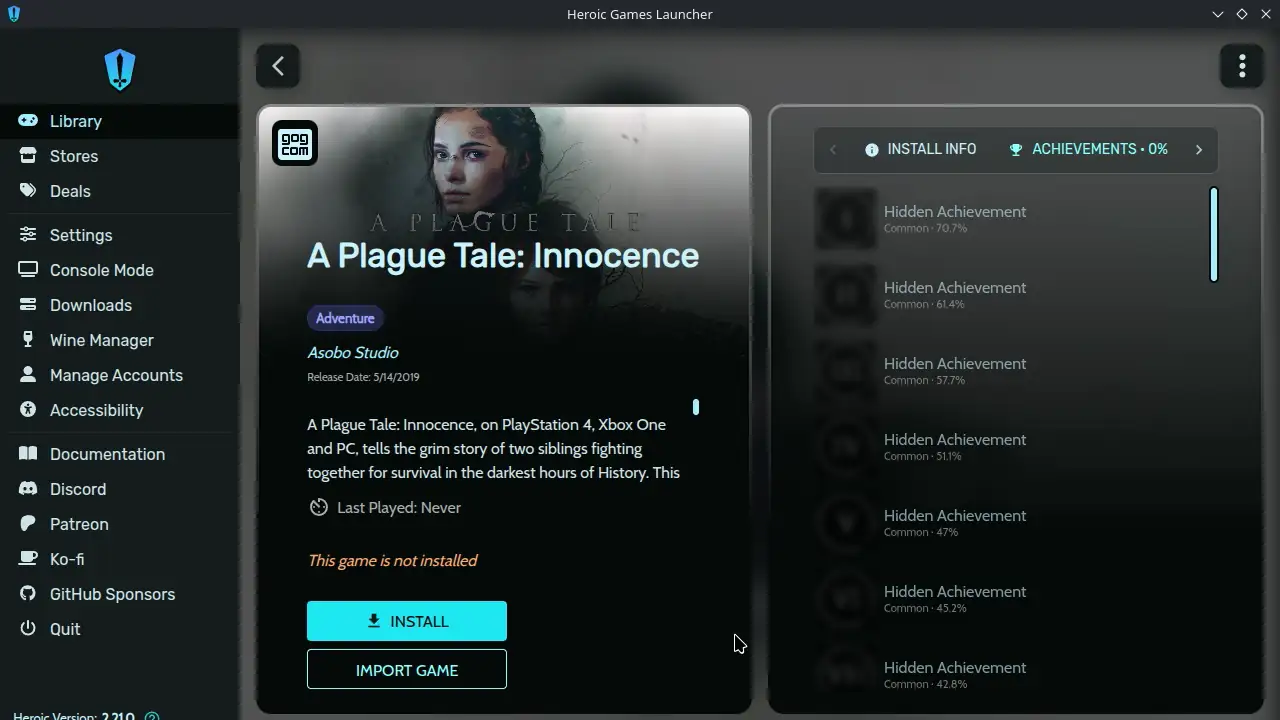
Steam Deck Tutorial Heroic Games Launcher 4 Minute Tutorial Epic Games . How To Install The Heroic Launcher To Play Epic And GOG Titles On Your . Heroic Games Launcher Steam Deck Guide Heroic Games Launcher Steam Deck Epic Games Gog Store . Steam Deck Heroic Games Launcher Epic Games GOG Steamdeck Non Steam Launchers How To 00 375x230 . Heroic Launcher Adds Fullscreen Console Mode With Latest Update 1.webp