Capturing your epic moments in Roblox is a skill every gamer needs. Whether it is showcasing a dazzling avatar, a rare item drop, an unforgettable social event with friends, or a hilarious glitch, knowing how to screenshot effectively enhances your gaming experience and social sharing. For adult gamers balancing life and play, quick and easy methods are crucial. This guide provides straightforward, efficient ways to grab those in-game memories across PC, Mac, and mobile devices without interrupting your flow. Learn the best tools and techniques to document your Roblox adventures instantly, from built-in game features to operating system shortcuts. No more fumbling around when that perfect moment strikes; we will equip you with all the knowledge to capture and share your Roblox triumphs and fun with ease.
Q: How do most pro Roblox players take screenshots of their gameplay?
A: Many pro Roblox players leverage advanced tools like NVIDIA's GeForce Experience or AMD's Radeon Software for screenshots and video captures, which offer high-quality captures, overlay features, and instant sharing. For quick snaps, they often rely on the Xbox Game Bar on PC or native OS shortcuts, as these are fast and dont require exiting the game. They also utilize third-party screen capturing software like Lightshot for quick edits and cloud uploads.
Q: What is the fastest way to screenshot in Roblox without interrupting my game?
A: The fastest way to screenshot in Roblox without interruption is by using your operating system's built-in shortcuts. On Windows, simply press the Print Screen (PrtScn) key to copy the entire screen, then paste it into an image editor. For a specific window, use Alt + PrtScn. On Mac, Command + Shift + 3 captures the whole screen instantly, while Command + Shift + 4 lets you select a specific area. These methods are quick, seamless, and keep you in the action.
Q: Are there any in-game Roblox settings for taking high-resolution screenshots?
A: Roblox itself does not have a dedicated in-game high-resolution screenshot setting in the traditional sense, like some other AAA titles. The resolution of your screenshots will largely depend on your monitor resolution and your Roblox graphics settings. To get higher quality, ensure your Roblox graphics quality is set to maximum and play in full-screen mode at your monitor's native resolution. External tools like the Xbox Game Bar or dedicated graphics card software often provide better control over capture quality.
Q: Can I screenshot Roblox on my phone and directly share it to Discord?
A: Absolutely! On mobile devices, simply use your phone's native screenshot function (usually a combination of power and volume buttons). Once captured, the image will appear in your photo gallery. From there, you can easily open Discord, navigate to your desired chat, and attach the image directly from your gallery. This makes sharing your mobile Roblox moments with your Discord communities incredibly straightforward and quick, a popular trend among social gamers today.
Q: Why are my Roblox screenshots coming out black or blank sometimes?
A: Black or blank Roblox screenshots often occur due to conflicting software or display driver issues. Common culprits include certain overlay programs, outdated graphics drivers, or security software interfering with screen capture functions. To troubleshoot, try updating your graphics drivers, disabling any third-party overlays (like Discord overlay or recording software), or restarting Roblox. Running Roblox in windowed mode might also help identify if the issue is full-screen related.
Q: Is it safe to use third-party screenshot tools with Roblox?
A: Using reputable third-party screenshot tools like Lightshot, ShareX, or Greenshot is generally safe. These tools are widely used and do not interact with Roblox's game files, only capturing what is displayed on your screen. However, always download software from official sources to avoid malware. Avoid any programs that claim to "inject" into Roblox for special features, as these could violate Roblox's Terms of Service and compromise your account security.
Q: How can I find my Roblox screenshots after I take them?
A: The location of your Roblox screenshots depends on the method you used. If you used Windows PrtScn, it's in your clipboard, ready to be pasted. With the Snipping Tool or Snip & Sketch, you'll usually be prompted to save. Mac screenshots typically save directly to your desktop. Mobile screenshots go to your device's photo gallery or camera roll. Screenshots taken via the Xbox Game Bar are saved in a "Captures" subfolder within your Videos library.
As gamers, we all know that feeling: you're deep in a Roblox experience, a truly epic moment unfolds – perhaps a rare victory in a fast-paced obby, a hilarious interaction with friends in a social game like Adopt Me!, or a stunning build you just completed in Bloxburg. Before you can even react, the moment’s gone! For many of us, balancing work, family, and life means our gaming time is precious. We want to savor every win, every laugh, and every creative masterpiece. This isn't just about showing off; it's about preserving memories, celebrating achievements, and connecting with our online communities. In fact, current trends show that social gaming is more vital than ever, with 87% of US gamers engaging regularly, and many spending upwards of 10 hours a week immersed in these virtual worlds. Capturing those moments easily and efficiently is no longer a luxury, it's a necessity for the modern gamer.
You don't want to fumble with complex key combinations or obscure settings when that perfect screenshot opportunity arises. This comprehensive guide will walk you through exactly how to screenshot in Roblox across all major platforms – PC, Mac, and mobile devices. We'll cover simple, quick methods that fit seamlessly into your gaming session, allowing you to grab those visual memories without skipping a beat. Whether you're a seasoned Roblox veteran or just starting your journey, get ready to master the art of the in-game snapshot, share your experiences effortlessly, and truly optimize how you document your virtual life. Let's dive in and make sure you never miss another unforgettable Roblox moment.
Why is Screenshotting in Roblox Important for Today's Gamer?
In the vibrant, ever-evolving world of Roblox, moments are fleeting. For the average US gamer, around age 36, who often balances a full-time job, family responsibilities, and personal life, gaming isn't just a pastime; it's a vital source of relaxation, social connection, and even skill development. Roughly 87% of US gamers play regularly, often dedicating 10+ hours a week to their favorite titles. Mobile gaming, in particular, dominates, making quick, shareable content even more critical.
Screenshotting in Roblox allows you to:
- Preserve Memories: Keep visual diaries of your favorite moments, from achieving a rare badge to a hilarious in-game bug.
- Showcase Creativity: Share your impressive builds, custom avatars, or game designs with a wider audience, fostering community engagement.
- Aid Troubleshooting: Capture visual evidence of glitches or issues to report to game developers or seek help from online forums.
- Socialize and Share: Easily post your experiences on platforms like Discord, Twitter, or Instagram, connecting with fellow gamers and friends.
- Create Content: For aspiring creators or streamers, screenshots are invaluable for thumbnails, social media posts, and promoting their Roblox adventures.
In an era where social gaming and content creation intersect, mastering the simple act of taking a screenshot in Roblox is an essential skill. It empowers you to be an active participant in the broader gaming narrative.
What Are the Easiest Ways to Screenshot Roblox on PC?
PC remains a stronghold for many dedicated gamers, offering a versatile platform for Roblox. Capturing your moments here is straightforward with a few key methods.
The Classic Print Screen (PrtScn) Key
This is the oldest trick in the book and still incredibly useful. Located typically on the top-right of your keyboard, the Print Screen (PrtScn) key copies an image of your entire screen to your clipboard.
- While in Roblox, press the PrtScn key. The image is now copied.
- Open an image editing program like Paint, Adobe Photoshop, or even a simple document.
- Press Ctrl + V to paste the screenshot.
- Save the image in your preferred format (JPEG, PNG).
Pro Tip: To screenshot only your active Roblox window, use Alt + PrtScn. This is perfect for when you have other windows open but only want to capture the game.
Windows Snipping Tool / Snip & Sketch
Windows has evolved its built-in screenshot capabilities, offering more flexibility.
Using Snip & Sketch (Windows 10/11)
- Press Windows Key + Shift + S. Your screen will dim, and a small toolbar will appear at the top.
- Choose your desired snip type: rectangular snip, freeform snip, window snip, or full-screen snip.
- Drag your cursor to select the area you want to capture.
- The screenshot will appear as a notification. Click on it to open Snip & Sketch for basic editing and saving.
This method is fantastic for quickly grabbing specific elements of your Roblox screen without having to crop later.
Xbox Game Bar
For Windows gamers, the Xbox Game Bar is a powerful overlay designed to enhance your gaming experience, including robust screenshot and video capture features.
- While in Roblox, press Windows Key + G to open the Xbox Game Bar.
- In the Capture widget, click the camera icon (or use the shortcut Windows Key + Alt + PrtScn).
- A notification will confirm your screenshot has been taken.
- Screenshots are automatically saved to your
Videos/Capturesfolder. You can also view and manage them directly within the Game Bar.
The Xbox Game Bar is particularly handy as it keeps you within the game context and offers quick access to your captures. It's a go-to for many US gamers who also enjoy Xbox titles and want a unified capture experience across their platforms.
How Do I Take Screenshots in Roblox on a Mac?
Mac users also have intuitive built-in tools for capturing their Roblox adventures. These methods are quick and directly save images to your desktop.
Capture the Entire Screen: Command + Shift + 3
This shortcut will take a snapshot of your entire Mac screen.
- While Roblox is running, press Command + Shift + 3 simultaneously.
- You'll hear a camera shutter sound (if your volume is up), and a thumbnail of the screenshot will briefly appear in the corner of your screen.
- The screenshot is automatically saved as a PNG file on your desktop.
Capture a Specific Area: Command + Shift + 4
For more precision, this shortcut allows you to select exactly what you want to capture.
- Press Command + Shift + 4. Your cursor will turn into a crosshair icon.
- Click and drag to select the rectangular area you wish to screenshot.
- Release the mouse button, and the screenshot will be saved to your desktop.
Bonus Tip: If you want to screenshot a specific window (like just the Roblox player window), after pressing Command + Shift + 4, press the Spacebar. Your cursor will turn into a camera icon. Click on the desired window, and only that window will be captured.
Can I Screenshot Roblox on Mobile Devices (iOS & Android)?
With mobile gaming’s meteoric rise – accounting for over 50% of the total gaming market this month – capturing Roblox moments on your phone or tablet is more common than ever. Thankfully, the process is incredibly simple, relying on your device's native functions.
Native Screenshot Methods (iOS & Android)
The exact button combination varies slightly by device, but the principle is the same:
For iPhones:
- iPhone with Face ID (no Home button): Press the Side button + Volume Up button simultaneously.
- iPhone with Home button: Press the Home button + Side/Power button simultaneously.
For Android Phones:
- Most Android phones: Press the Power button + Volume Down button simultaneously.
- Some older Android models or custom ROMs might have different gestures or a screenshot option in the notification shade/quick settings panel.
After taking the screenshot, a preview will usually appear, allowing you to quickly edit, share, or simply dismiss it. The image is saved directly to your device's photo gallery or camera roll, making it instantly accessible for sharing on social media or Discord with your gaming friends.
Does Roblox Have an In-Game Screenshot Feature?
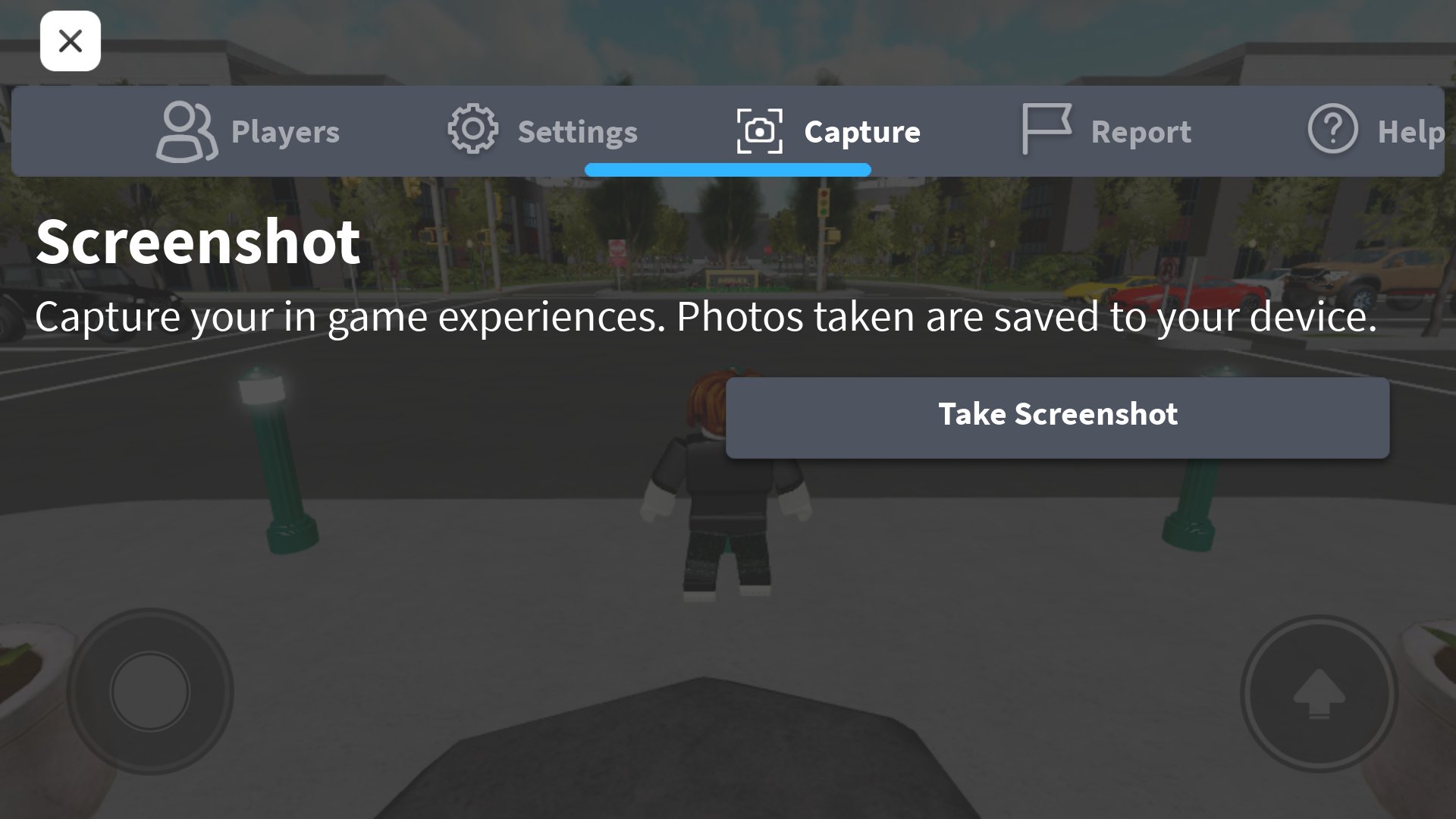
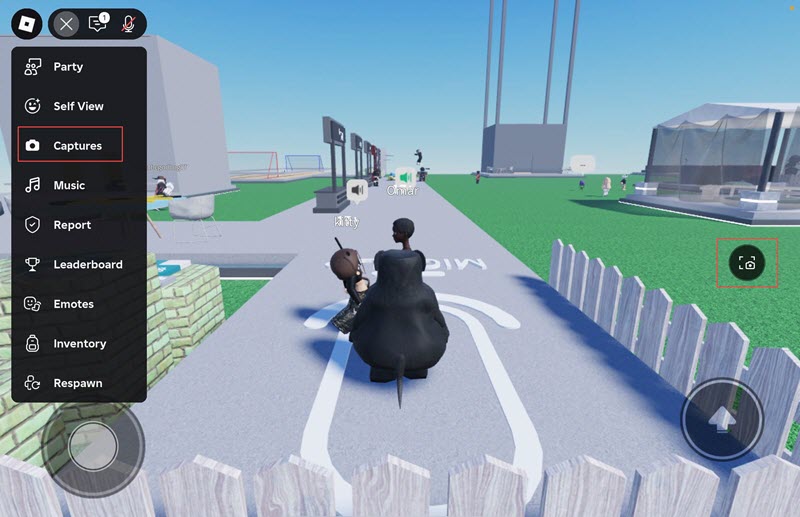
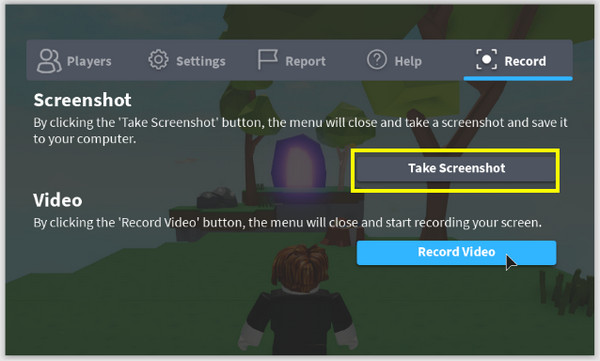
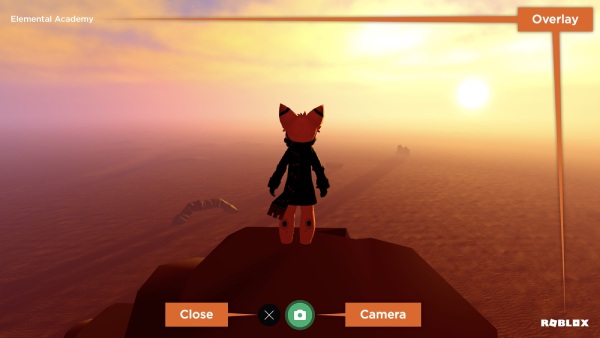
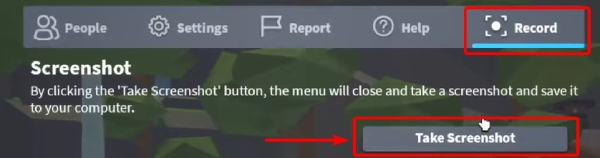
Many popular games today offer a dedicated "photo mode" or in-game camera. However, Roblox, in its core client, does not have a universal, built-in screenshot feature that saves directly to your computer. While some individual Roblox experiences (games) created by developers might integrate their own camera tools or photo booths, these are specific to those games and not a part of the main Roblox platform's functionality.
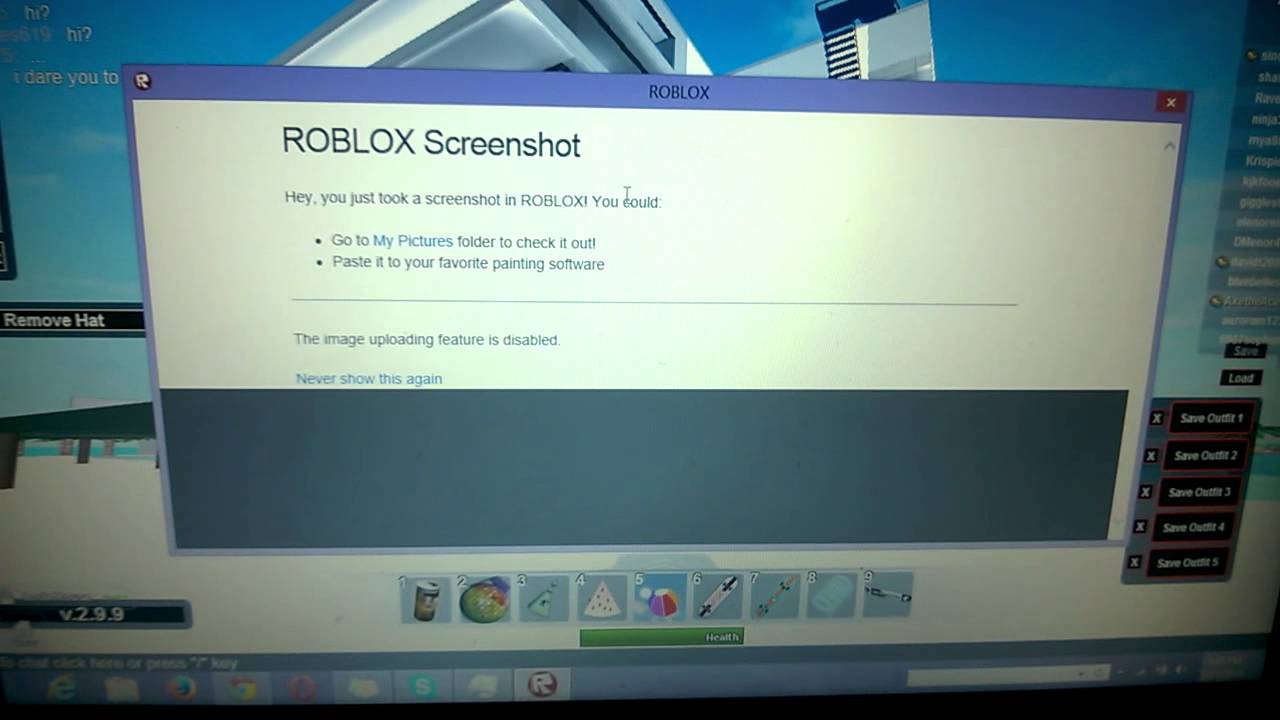
This means for capturing screenshots across the entire Roblox ecosystem, you'll need to rely on the operating system methods discussed earlier (PrtScn, Snipping Tool, Xbox Game Bar for PC; Command + Shift + 3/4 for Mac; native mobile functions). This approach ensures consistency regardless of the specific Roblox game you're playing and offers more control over how and where your images are saved.
How Can I Share My Roblox Screenshots with Friends or on Social Media?
Taking the screenshot is only half the fun! Sharing your Roblox triumphs and hilarious glitches is where the social aspect truly shines. With platforms like Discord becoming virtual hangouts for gamers, and social media a hub for showcasing creativity, sharing is key.
Direct Sharing from Gallery/Files
Once your screenshot is saved (to your desktop, downloads, or mobile gallery):
- Discord: Open Discord, navigate to your server or direct message, click the "+" icon next to the chat bar, and select "Upload a File" or "Add from Gallery" (mobile).
- Social Media: Open the app (Twitter, Instagram, etc.), start a new post, and select your screenshot from your photo library. Add a caption and relevant hashtags like #Roblox to reach a wider audience.
- Email/Messaging Apps: Attach the image directly from your file explorer or gallery to an email or messaging app for private sharing.
Remember, always be mindful of privacy and only share content you're comfortable with others seeing. Sharing your cool moments helps build community and is a core part of the modern gaming experience.
What Are Common Problems When Screenshotting in Roblox and How to Fix Them?
Even with simple tools, sometimes things don't go as planned. Here are a few common issues and their quick fixes:
- Black or Blank Screenshots: This is often caused by conflicting software.
- Fix: Disable any overlay programs (like Discord overlay, NVIDIA GeForce Experience overlay) before taking a screenshot. Ensure your graphics drivers are up to date. Running Roblox in windowed mode might also help.
- Screenshot Only Captures Desktop/Other Window: You pressed PrtScn but got the wrong screen.
- Fix: Ensure Roblox is the active, focused window. If using Alt + PrtScn, confirm the Roblox window is the one truly "active." For Mac, use the Command + Shift + 4 then Spacebar method to specifically select the Roblox window.
- Low Quality/Pixelated Screenshots: The image looks blurry or jaggy.
- Fix: Increase your in-game Roblox graphics settings to the highest level. Play Roblox in full-screen mode at your monitor's native resolution. External tools like the Xbox Game Bar might offer higher fidelity capture settings.
- Screenshots Not Saving/Found: You took a screenshot but can't find it.
- Fix: Double-check the default save locations: desktop for Mac,
Videos/Capturesfor Xbox Game Bar, photo gallery for mobile. If you used PrtScn on Windows, remember it’s in the clipboard and needs to be pasted into an editor to be saved as a file.
- Fix: Double-check the default save locations: desktop for Mac,
These troubleshooting tips should help you overcome most common screenshot hurdles, ensuring your game captures are always clear and readily available.
Pro Tips for Capturing the Perfect Roblox Moment
Want to elevate your Roblox screenshots from simple snaps to shareable masterpieces? Here are some expert tips to make your captures stand out:
- Master the Angle and Composition: Just like a real photographer, consider your shot. Experiment with different camera angles in Roblox. Focus on leading lines, rule of thirds, and ensuring the subject of your screenshot is clear and compelling.
- Adjust In-Game Settings: Temporarily crank up your Roblox graphics quality to maximum before you snap. This will make your screenshot sharper and more vibrant.
- Time Your Shot: Capture action at its peak – a character mid-jump, an explosion, or a perfectly timed emote. Practice anticipating these moments.
- Edit for Impact: A quick crop to remove UI elements or a slight color correction in a basic image editor can dramatically improve your screenshot's appeal. Tools like Snip & Sketch (Windows) or your phone's photo editor offer quick, easy enhancements.
- Consider Advanced Tools: If your graphics card supports it, tools like NVIDIA Ansel or AMD Radeon Software can offer higher quality captures, even HDR, for superior image fidelity.
By applying these pro tips, your Roblox screenshots won't just be records; they'll be works of art, ready to impress your friends and the wider Roblox community. For adult gamers who value skill-building and optimizing their experience, these small efforts make a big difference.
Conclusion: Capture Your Roblox Legacy
From fleeting victories to breathtaking builds, your Roblox journey is filled with moments worth remembering. We've explored the various ways to effectively screenshot in Roblox across PC, Mac, and mobile, equipping you with the knowledge to capture every significant experience. No longer will you miss that epic jump, that rare pet acquisition, or that hilarious chat with friends. By leveraging your operating system's built-in tools or handy third-party applications, you can seamlessly integrate screenshotting into your gameplay, preserving your digital memories and enhancing your social interactions within the gaming community.
The ability to quickly and clearly document your virtual life adds another layer of enjoyment to your gaming, allowing you to share your passion and achievements effortlessly. So go forth, gamer, and immortalize your Roblox legacy one screenshot at a time!
What's your biggest gaming challenge when trying to capture or share your in-game moments? Comment below and let us know!
Frequently Asked Questions About Roblox Screenshots
Q: Can I screenshot Roblox without showing the UI?
A: Yes, many screenshot tools allow cropping. For PC, Snip & Sketch lets you select an area. On Mac, Command + Shift + 4 allows selective capture. Generally, cropping after capture is the easiest way to get a clean image.
Q: Where do Roblox screenshots save on Windows?
A: If you use PrtScn, it's copied to your clipboard. The Snipping Tool or Snip & Sketch will prompt you to save. Xbox Game Bar saves to your Videos/Captures folder. Third-party tools like Lightshot usually save to a default folder or let you choose.
Q: What’s the best quality format for Roblox screenshots?
A: PNG is generally recommended for screenshots as it's a lossless format, meaning it retains all image data and doesn't introduce compression artifacts. JPEG is also common but uses lossy compression, which can reduce quality, especially for images with sharp lines or text.
Q: Does taking screenshots affect Roblox game performance?
A: For most built-in OS screenshot tools (PrtScn, native mobile methods), the performance impact is negligible. Dedicated recording software or more advanced screenshot tools that process images heavily might cause a momentary dip, but it's usually minimal and brief.
Simple screenshot methods for PC Mac and Mobile Roblox, Built-in Roblox screenshot tool, Windows Snipping Tool Print Screen key, macOS Command Shift 3 4, Mobile device native screenshot, Sharing Roblox moments quickly
35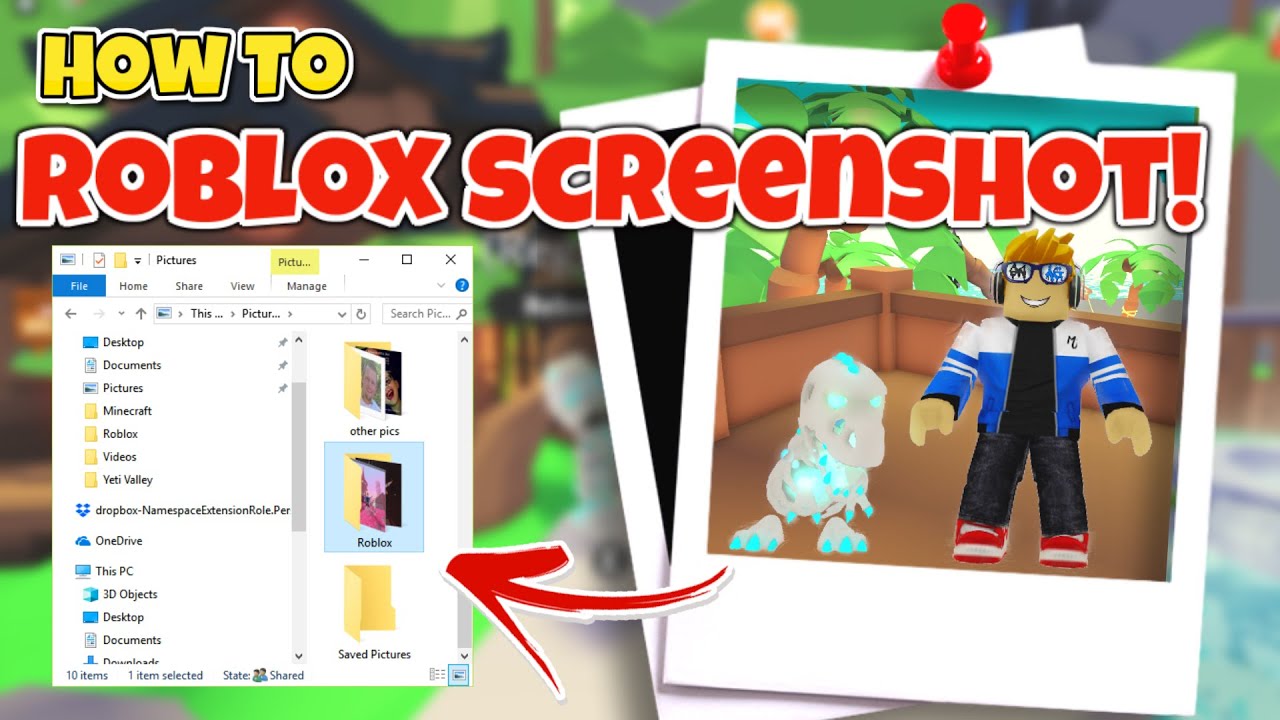

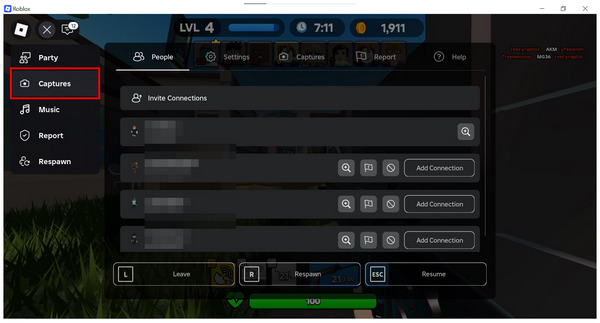

Roblox Memories Your Guide To Taking Screenshots . How To Take A Screenshot In Roblox Studio High Quality YouTube . How To Take A Screenshot In Roblox On All Devices Roblox Captures Option . Can T Screenshot Using Roblox Screenshot Platform Usage Support . How To Take HD Screenshots In Roblox Studio YouTube


Roblox Memories Your Guide To Taking Screenshots . Roblox Memories Your Guide To Taking Screenshots . Roblox Memories Your Guide To Taking Screenshots . How To Take A Screenshot In Roblox YouTube . Roblox Memories Your Guide To Taking Screenshots Large


How To Take A Screenshot On Roblox All Device Guidance . How To Take A Screenshot In Roblox Studio 2025 High Quality YouTube . 6 M Glichkeiten Um Screenshots In Roblox Auf PC Mac IPhone Android Zu Roblox Built In Screenshot Capture . How To Take A Screenshot On Pc Roblox Guide Glimpse YouTube . How To Take A Screenshot In Roblox On All Devices Roblox Screenshot



How To Take A Screenshot In Roblox On All Devices Anymp4 Screen Recorder Screen Capture . Roblox Memories Your Guide To Taking Screenshots . Roblox Memories Your Guide To Taking Screenshots . How To Take A Screenshot On Roblox All Device Guidance . Roblox Memories Your Guide To Taking Screenshots



How To Update Roblox In 2026 Fix Error Code 280 On PC Mobile Xbox Roblox Update It.webp. How To Publish A Game On Roblox In 2026 Roblox YouTube . How To Message On Roblox 2026 A Quick Guide . Roblox 2026 Logo REVEALED New Color New Look YouTube Maxres2 . Definitive Guide To Roblox 2026 TM 07169 Definitive Guide To Roblox 2026


How To Download Roblox Images In 2026 A Quick Guide . 5 Maneiras Eficazes De Fazer Capturas De Tela Do Roblox Todos Os Roblox Official Screenshot . Tips For Capturing High Quality Screenshots And Videos In Studio . How To Get Trusted Connections In Roblox 2026 Full Tutorial Roblox Trusted. How To Create A Roblox Account In 2026 What You Need 2 1024x865



How To Take A Screenshot In Roblox Simple Guide YouTube . Roblox Memories Your Guide To Taking Screenshots . Roblox Memories Your Guide To Taking Screenshots . Take Roblox Screenshots On Windows Mac IPhone Andorid Roblox Record And Take Screenshot Button . Can T Screenshot Using Roblox Screenshot Platform Usage Support